
You can set up real-time buying signal alerts in Slack in under 15 minutes using WhiteWhale’s native Slack integration. Once connected, signals fire directly into a Slack channel the moment an account hits one of your custom triggers, with the source linked and key details included so reps can act without leaving Slack.
This guide walks through the full setup: connecting WhiteWhale to Slack, choosing your alert channels, configuring which signals trigger notifications, and tuning the alerts so your team gets signal, not noise.
Why Slack for buying signals
Most buying signal platforms deliver alerts through dashboards or email digests. The problem is that reps do not live in dashboards. They live in Slack. A signal that sits in a dashboard until someone logs in and notices it is a signal that aged out before anyone acted on it.
WhiteWhale’s Slack integration solves this by delivering signals where your team already works. When a target account hits a buying signal, the alert appears in Slack within minutes, with the account name, which signals fired, the original source linked, and a direct quote or key fact pulled from the source.
90% of WhiteWhale customers never log into the platform after initial setup. Slack (and Microsoft Teams, available on enterprise plans) is how most teams interact with their signals day-to-day.
WhiteWhale supports two types of Slack alerts:
Alert type | What it does | Best for |
|---|---|---|
Team channel alerts | All signals for your entire account list post to a shared Slack channel | Sales managers, team-wide visibility, morning standups |
Individual rep alerts | Each rep gets DMs or channel alerts only for their assigned accounts | Account executives, SDRs with defined territories |
Most teams run both: a shared channel for full visibility and individual alerts so reps see only what is relevant to their book.
What you need before starting
A WhiteWhale account (Pro plans start at $200/mo, month-to-month, no annual contract. You can see what signals WhiteWhale finds for your accounts before signing up.)
At least one custom signal written (see step 2 if you have not done this yet)
Admin access to your Slack workspace, or the ability to approve app installations
A Slack channel created for signal alerts (you can also use an existing channel)
Step 1: Connect WhiteWhale to Slack
Open your WhiteWhale dashboard and navigate to Integrations in the left sidebar. Select Slack from the list of available integrations.
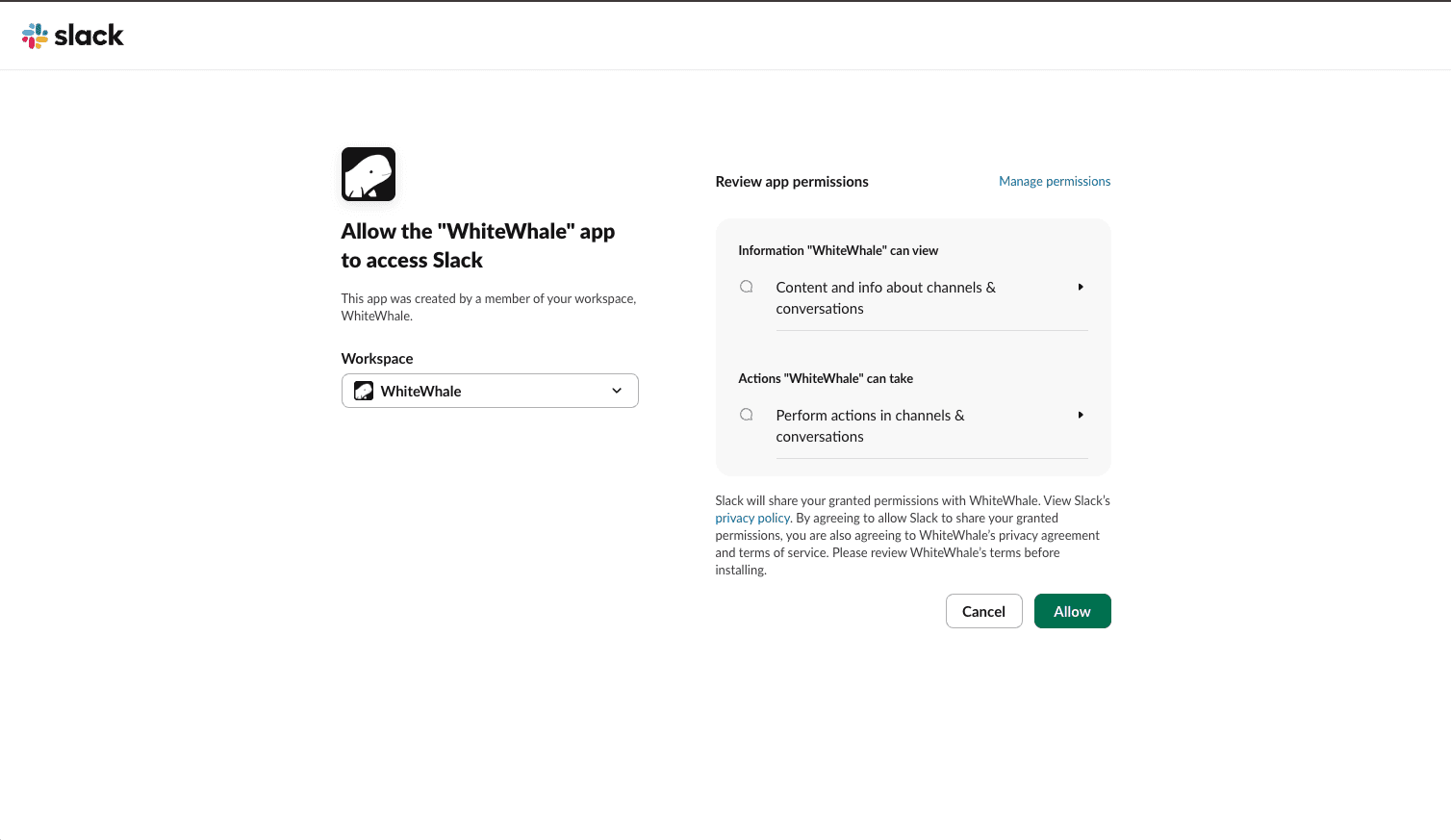
Click Connect to Slack. This opens Slack’s OAuth screen where you authorize WhiteWhale to post messages to your workspace. Select the workspace you want to connect, review the permissions, and click Allow.
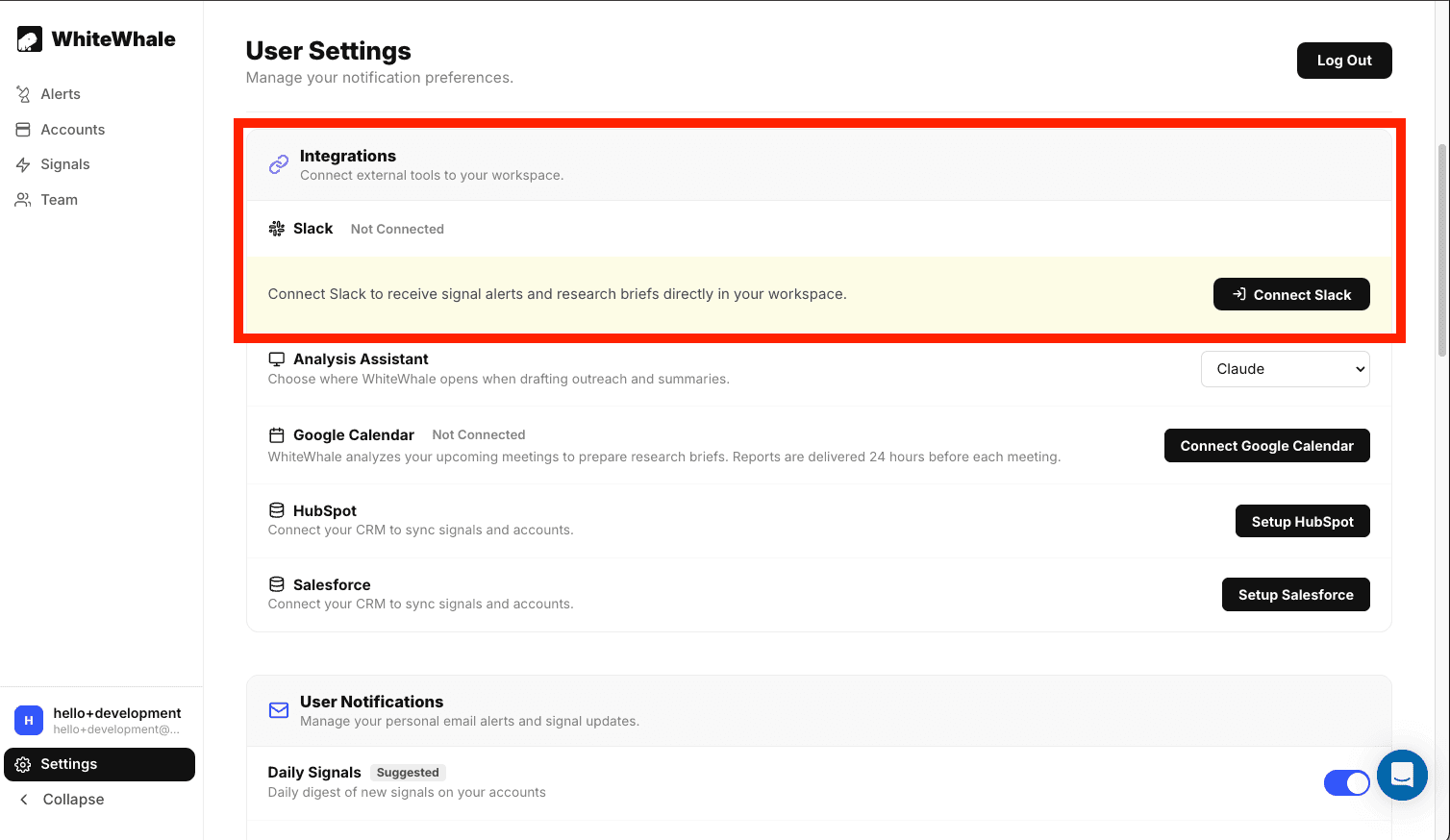
Once connected, you will see a green “Connected” status next to Slack in your integrations list. WhiteWhale now has permission to post to channels in your workspace.
Step 2: Write your custom signals (if you have not already)
If you already have signals set up, skip to Step 3.
Signals are the core of what WhiteWhale monitors. You write them in plain English, and the system scans SEC filings, earnings call transcripts, job postings from company ATS systems, 8,000+ news feeds, press releases, and company LinkedIn posts to find matches.
Navigate to Signals in the left sidebar. Click Add Signal. Type your trigger in natural language.
Examples of signals that work well for Slack alerts:
“Is {account} hiring for roles that mention data migration?”
“Did {account} announce a new CFO or VP of Finance?”
“Is {account} mentioned in news about cost reduction or layoffs?”
“Did {account}’s CEO discuss AI adoption on an earnings call?”
“Is {account} posting jobs for roles that mention [your competitor]?”
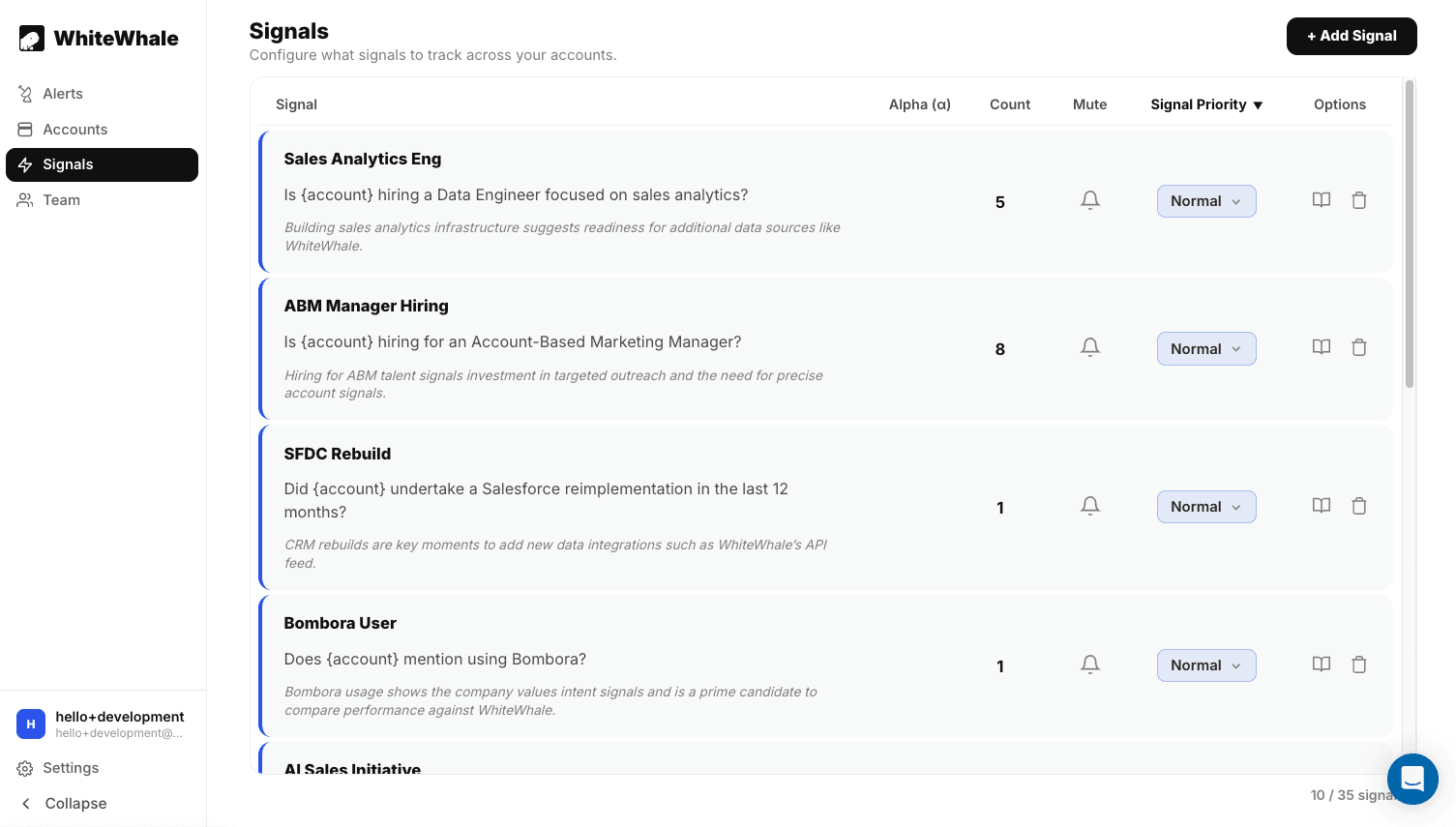
You can create up to 35 custom signals. Each one runs automatically against your account list on a daily or weekly cadence depending on your plan.
For more on how signals work and examples by use case, see what is a sales signal.
Step 3: Choose your Slack alert channel
Back in Integrations > Slack, you will see a section for configuring alert destinations.
For a team channel: Select Add Channel and choose the Slack channel where you want all signal alerts to post. Most teams create a dedicated channel like #buying-signals or #whitewhale-alerts.
For individual rep alerts: Toggle on Individual Notifications. This sends each rep a DM (or posts to their personal channel) only when one of their assigned accounts hits a signal. Account assignments are managed in WhiteWhale’s account list, where each account can be tagged to a specific rep or territory.
Step 4: Configure which signals trigger Slack alerts
Not every signal needs to ping Slack. You can control which signals generate Slack notifications and which ones stay in the dashboard only.
In the Notifications section of your Slack integration settings, you will see your full list of active signals. Toggle each one on or off for Slack notifications.
A common setup:
Signal | Slack alert? | Why |
|---|---|---|
New executive hire (CFO, CTO, VP) | On | High-priority timing signal, act within days |
Earnings call mentions your category | On | Rare and high-value, reps need to see immediately |
Hiring for roles mentioning your competitor | On | Competitive displacement opportunity |
Job postings mentioning data migration | On | Strong buying signal for relevant products |
Company mentioned in general industry news | Off | High volume, better reviewed in weekly digest |
Company LinkedIn post about a topic | Off | Lower urgency, review in dashboard |
The goal is to keep your Slack channel high-signal, not high-volume. If reps start muting the channel, the alerts have lost their value. Start with 3 to 5 of your highest-priority signals turned on for Slack and add more over time as your team gets comfortable.
Step 5: Review what a Slack alert looks like
When a signal fires, the Slack message includes:
Account name and basic firmographic data (industry, employee count, location)
Which signal(s) fired on this account
The original source linked so reps can verify the signal before acting
A direct quote or key fact pulled from the source
Signal stack count showing how many total signals this account has hit recently
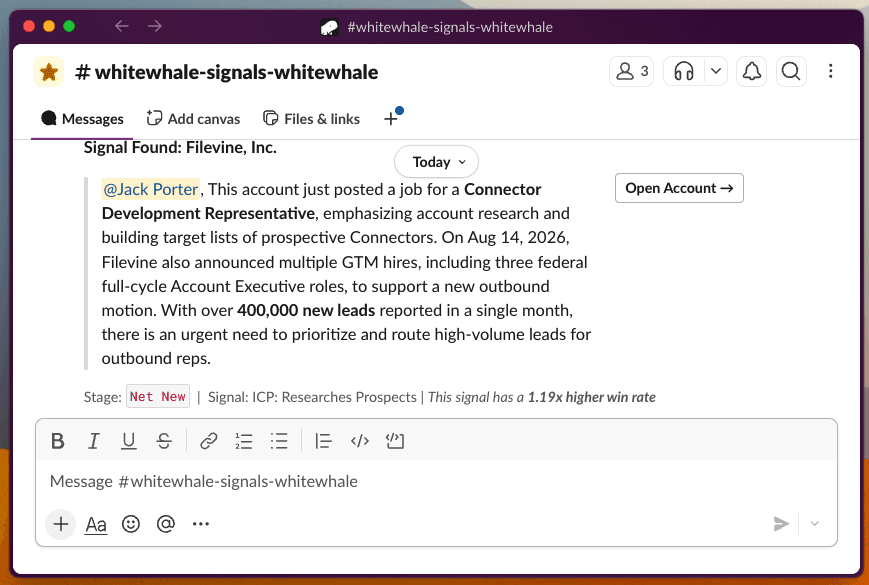
Accounts with multiple stacked signals get highlighted. An account that hits “new CFO” and “earnings call mentioned cost reduction” and “hiring for roles mentioning your category” in the same week is a fundamentally different priority than one that hit a single generic trigger. Accounts with 2+ stacked signals close at 2.1x the baseline win rate based on WhiteWhale internal data.
Reps can click the source link directly from Slack to verify the signal, then reference specific details from the source in their outreach. Beau Blanchard at Gravitate chose WhiteWhale over ZoomInfo, Clay, and other signal companies specifically for this reason: “Having a system that scrapes SEC filings, company posts, and job postings gives us a much warmer approach than ‘Hey, thanks for looking at our website today.’”
Step 6: Connect to your CRM for full context
Slack alerts work best when paired with a CRM integration. When a signal fires in Slack, you want to see the full picture in HubSpot or Salesforce without switching tabs.
WhiteWhale’s CRM integrations sync signal data directly into your CRM records. The Slack alert is the notification layer. The CRM is the action layer. Together, they create a workflow where reps see the signal in Slack, click through to the account in their CRM, and find the full signal history and source links already there.
[Screenshot: HubSpot account record showing WhiteWhale signal data in the sidebar]
For teams using Clay, signals can also fire via webhook into Clay workflows for automated enrichment and sequencing. And for AI-native teams, the MCP integration lets Claude or ChatGPT access your signal data directly.
Troubleshooting common issues
Slack channel not appearing in the dropdown: Make sure you have invited the WhiteWhale app to the channel in Slack first. Type /invite in the channel, then make sure the WhiteWhale app is connected.
Too many alerts: Turn off lower-priority signals in the notification toggles (Step 4). Most teams start with 3 to 5 signals on Slack and expand over time. You can also adjust your monitoring cadence from daily to weekly for less urgent signals.
Alerts are not firing: Check that your account list has been uploaded and that at least one signal is active. Signals run on a scheduled cadence (daily or weekly or monthly), so there may be a delay between setup and your first alert. Contact the WhiteWhale team via your Slack support channel if alerts have not fired after 48 hours.
Individual rep alerts not working: Make sure each account in your list is assigned to a rep. Unassigned accounts only trigger team channel alerts, not individual notifications.
Advanced: Using Slack alerts with AI workflows
For teams that want to go beyond manual follow-up, WhiteWhale signals in Slack can be the starting point for automated workflows:
WhiteWhale + Clay + Slack: Signals fire via webhook to Clay, Clay runs waterfall enrichment to find the right contact, then posts the enriched result back to a Slack channel with verified email and phone number attached. The rep sees the signal and the contact in one message.
WhiteWhale + Claude MCP + Slack: Connect WhiteWhale to Claude via MCP. Ask Claude to draft a personalized outreach email using the signal data (the source, the quote, the “why now”). The draft posts to Slack for rep review before sending. Sigma Computing used a similar workflow to open 7 enterprise deals in two weeks by generating strategic one-pagers from signal data.
WhiteWhale + HubSpot workflows + Slack: When a signal fires and syncs to HubSpot, trigger a HubSpot workflow that automatically enrolls the account in a sequence, assigns it to a rep, and posts a summary to Slack. The rep gets the alert and knows the sequence is already running.
For the full list of integration options, see the WhiteWhale API documentation.
FAQ
How long does it take to set up WhiteWhale Slack alerts?
Under 15 minutes. Connect Slack (2 minutes), write your signals if you have not already (5 to 10 minutes), choose your channel and configure notifications (3 minutes). Most teams have their first real signal in Slack within 24 hours of setup.
Can I get buying signal alerts in Microsoft Teams instead of Slack?
Yes. WhiteWhale supports both Microsoft Teams on enterprise plans with the same alert functionality. The setup process is nearly identical. Choose whichever platform your team uses.
How many signals should I turn on for Slack alerts?
Start with 3 to 7 of your highest-priority signals. The goal is to keep the channel high-signal so reps actually read it. If reps start muting the channel, you have too many alerts turned on. Add more signals over time as your team builds the habit of acting on them.
How much does WhiteWhale cost?
Plans start at $200/month, month-to-month, no annual contract. Unlimited users. You can see what signals WhiteWhale finds for your accounts before committing to a plan. Pricing scales linearly with accounts monitored. See pricing for details.
Can different reps get alerts for different accounts?
Yes. WhiteWhale supports individual rep notifications where each rep only sees alerts for their assigned accounts. This is managed through account assignments in the platform. You can also run a shared team channel alongside individual alerts so managers have full visibility.
What does a WhiteWhale Slack alert actually look like?
Each alert includes the account name, which signals fired, a link to the original source, a direct quote or key fact from the source, and the total signal stack count. Reps can verify the signal and reference specific details in their outreach without leaving Slack. See Step 5 above for a visual example.
Can I connect WhiteWhale Slack alerts to automated outreach?
Yes, through integrations. WhiteWhale signals can trigger Clay workflows via webhook, HubSpot sequences via CRM sync, or AI-generated outreach via MCP. The Slack alert serves as both the notification for the rep and the trigger for the downstream automation. See the best buying signal platforms comparison for how this stacks up against other tools.
About the author
Jack Porter is Co-Founder of WhiteWhale, a buying signal platform for B2B sales teams. Since 2025, Jack has spoken with 1,875 sales, GTM, and marketing leaders about their technology stack, what signals actually drive pipeline, and where intent data falls short. Those conversations informed every recommendation on this page. He can be reached on LinkedIn.
You can set up real-time buying signal alerts in Slack in under 15 minutes using WhiteWhale’s native Slack integration. Once connected, signals fire directly into a Slack channel the moment an account hits one of your custom triggers, with the source linked and key details included so reps can act without leaving Slack.
This guide walks through the full setup: connecting WhiteWhale to Slack, choosing your alert channels, configuring which signals trigger notifications, and tuning the alerts so your team gets signal, not noise.
Why Slack for buying signals
Most buying signal platforms deliver alerts through dashboards or email digests. The problem is that reps do not live in dashboards. They live in Slack. A signal that sits in a dashboard until someone logs in and notices it is a signal that aged out before anyone acted on it.
WhiteWhale’s Slack integration solves this by delivering signals where your team already works. When a target account hits a buying signal, the alert appears in Slack within minutes, with the account name, which signals fired, the original source linked, and a direct quote or key fact pulled from the source.
90% of WhiteWhale customers never log into the platform after initial setup. Slack (and Microsoft Teams, available on enterprise plans) is how most teams interact with their signals day-to-day.
WhiteWhale supports two types of Slack alerts:
Alert type | What it does | Best for |
|---|---|---|
Team channel alerts | All signals for your entire account list post to a shared Slack channel | Sales managers, team-wide visibility, morning standups |
Individual rep alerts | Each rep gets DMs or channel alerts only for their assigned accounts | Account executives, SDRs with defined territories |
Most teams run both: a shared channel for full visibility and individual alerts so reps see only what is relevant to their book.
What you need before starting
A WhiteWhale account (Pro plans start at $200/mo, month-to-month, no annual contract. You can see what signals WhiteWhale finds for your accounts before signing up.)
At least one custom signal written (see step 2 if you have not done this yet)
Admin access to your Slack workspace, or the ability to approve app installations
A Slack channel created for signal alerts (you can also use an existing channel)
Step 1: Connect WhiteWhale to Slack
Open your WhiteWhale dashboard and navigate to Integrations in the left sidebar. Select Slack from the list of available integrations.
Click Connect to Slack. This opens Slack’s OAuth screen where you authorize WhiteWhale to post messages to your workspace. Select the workspace you want to connect, review the permissions, and click Allow.
Once connected, you will see a green “Connected” status next to Slack in your integrations list. WhiteWhale now has permission to post to channels in your workspace.
Step 2: Write your custom signals (if you have not already)
If you already have signals set up, skip to Step 3.
Signals are the core of what WhiteWhale monitors. You write them in plain English, and the system scans SEC filings, earnings call transcripts, job postings from company ATS systems, 8,000+ news feeds, press releases, and company LinkedIn posts to find matches.
Navigate to Signals in the left sidebar. Click Add Signal. Type your trigger in natural language.
Examples of signals that work well for Slack alerts:
“Is {account} hiring for roles that mention data migration?”
“Did {account} announce a new CFO or VP of Finance?”
“Is {account} mentioned in news about cost reduction or layoffs?”
“Did {account}’s CEO discuss AI adoption on an earnings call?”
“Is {account} posting jobs for roles that mention [your competitor]?”
You can create up to 35 custom signals. Each one runs automatically against your account list on a daily or weekly cadence depending on your plan.
For more on how signals work and examples by use case, see what is a sales signal.
Step 3: Choose your Slack alert channel
Back in Integrations > Slack, you will see a section for configuring alert destinations.
For a team channel: Select Add Channel and choose the Slack channel where you want all signal alerts to post. Most teams create a dedicated channel like #buying-signals or #whitewhale-alerts.
For individual rep alerts: Toggle on Individual Notifications. This sends each rep a DM (or posts to their personal channel) only when one of their assigned accounts hits a signal. Account assignments are managed in WhiteWhale’s account list, where each account can be tagged to a specific rep or territory.
Step 4: Configure which signals trigger Slack alerts
Not every signal needs to ping Slack. You can control which signals generate Slack notifications and which ones stay in the dashboard only.
In the Notifications section of your Slack integration settings, you will see your full list of active signals. Toggle each one on or off for Slack notifications.
A common setup:
Signal | Slack alert? | Why |
|---|---|---|
New executive hire (CFO, CTO, VP) | On | High-priority timing signal, act within days |
Earnings call mentions your category | On | Rare and high-value, reps need to see immediately |
Hiring for roles mentioning your competitor | On | Competitive displacement opportunity |
Job postings mentioning data migration | On | Strong buying signal for relevant products |
Company mentioned in general industry news | Off | High volume, better reviewed in weekly digest |
Company LinkedIn post about a topic | Off | Lower urgency, review in dashboard |
The goal is to keep your Slack channel high-signal, not high-volume. If reps start muting the channel, the alerts have lost their value. Start with 3 to 5 of your highest-priority signals turned on for Slack and add more over time as your team gets comfortable.
Step 5: Review what a Slack alert looks like
When a signal fires, the Slack message includes:
Account name and basic firmographic data (industry, employee count, location)
Which signal(s) fired on this account
The original source linked so reps can verify the signal before acting
A direct quote or key fact pulled from the source
Signal stack count showing how many total signals this account has hit recently
Accounts with multiple stacked signals get highlighted. An account that hits “new CFO” and “earnings call mentioned cost reduction” and “hiring for roles mentioning your category” in the same week is a fundamentally different priority than one that hit a single generic trigger. Accounts with 2+ stacked signals close at 2.1x the baseline win rate based on WhiteWhale internal data.
Reps can click the source link directly from Slack to verify the signal, then reference specific details from the source in their outreach. Beau Blanchard at Gravitate chose WhiteWhale over ZoomInfo, Clay, and other signal companies specifically for this reason: “Having a system that scrapes SEC filings, company posts, and job postings gives us a much warmer approach than ‘Hey, thanks for looking at our website today.’”
Step 6: Connect to your CRM for full context
Slack alerts work best when paired with a CRM integration. When a signal fires in Slack, you want to see the full picture in HubSpot or Salesforce without switching tabs.
WhiteWhale’s CRM integrations sync signal data directly into your CRM records. The Slack alert is the notification layer. The CRM is the action layer. Together, they create a workflow where reps see the signal in Slack, click through to the account in their CRM, and find the full signal history and source links already there.
[Screenshot: HubSpot account record showing WhiteWhale signal data in the sidebar]
For teams using Clay, signals can also fire via webhook into Clay workflows for automated enrichment and sequencing. And for AI-native teams, the MCP integration lets Claude or ChatGPT access your signal data directly.
Troubleshooting common issues
Slack channel not appearing in the dropdown: Make sure you have invited the WhiteWhale app to the channel in Slack first. Type /invite in the channel, then make sure the WhiteWhale app is connected.
Too many alerts: Turn off lower-priority signals in the notification toggles (Step 4). Most teams start with 3 to 5 signals on Slack and expand over time. You can also adjust your monitoring cadence from daily to weekly for less urgent signals.
Alerts are not firing: Check that your account list has been uploaded and that at least one signal is active. Signals run on a scheduled cadence (daily or weekly or monthly), so there may be a delay between setup and your first alert. Contact the WhiteWhale team via your Slack support channel if alerts have not fired after 48 hours.
Individual rep alerts not working: Make sure each account in your list is assigned to a rep. Unassigned accounts only trigger team channel alerts, not individual notifications.
Advanced: Using Slack alerts with AI workflows
For teams that want to go beyond manual follow-up, WhiteWhale signals in Slack can be the starting point for automated workflows:
WhiteWhale + Clay + Slack: Signals fire via webhook to Clay, Clay runs waterfall enrichment to find the right contact, then posts the enriched result back to a Slack channel with verified email and phone number attached. The rep sees the signal and the contact in one message.
WhiteWhale + Claude MCP + Slack: Connect WhiteWhale to Claude via MCP. Ask Claude to draft a personalized outreach email using the signal data (the source, the quote, the “why now”). The draft posts to Slack for rep review before sending. Sigma Computing used a similar workflow to open 7 enterprise deals in two weeks by generating strategic one-pagers from signal data.
WhiteWhale + HubSpot workflows + Slack: When a signal fires and syncs to HubSpot, trigger a HubSpot workflow that automatically enrolls the account in a sequence, assigns it to a rep, and posts a summary to Slack. The rep gets the alert and knows the sequence is already running.
For the full list of integration options, see the WhiteWhale API documentation.
FAQ
How long does it take to set up WhiteWhale Slack alerts?
Under 15 minutes. Connect Slack (2 minutes), write your signals if you have not already (5 to 10 minutes), choose your channel and configure notifications (3 minutes). Most teams have their first real signal in Slack within 24 hours of setup.
Can I get buying signal alerts in Microsoft Teams instead of Slack?
Yes. WhiteWhale supports both Microsoft Teams on enterprise plans with the same alert functionality. The setup process is nearly identical. Choose whichever platform your team uses.
How many signals should I turn on for Slack alerts?
Start with 3 to 7 of your highest-priority signals. The goal is to keep the channel high-signal so reps actually read it. If reps start muting the channel, you have too many alerts turned on. Add more signals over time as your team builds the habit of acting on them.
How much does WhiteWhale cost?
Plans start at $200/month, month-to-month, no annual contract. Unlimited users. You can see what signals WhiteWhale finds for your accounts before committing to a plan. Pricing scales linearly with accounts monitored. See pricing for details.
Can different reps get alerts for different accounts?
Yes. WhiteWhale supports individual rep notifications where each rep only sees alerts for their assigned accounts. This is managed through account assignments in the platform. You can also run a shared team channel alongside individual alerts so managers have full visibility.
What does a WhiteWhale Slack alert actually look like?
Each alert includes the account name, which signals fired, a link to the original source, a direct quote or key fact from the source, and the total signal stack count. Reps can verify the signal and reference specific details in their outreach without leaving Slack. See Step 5 above for a visual example.
Can I connect WhiteWhale Slack alerts to automated outreach?
Yes, through integrations. WhiteWhale signals can trigger Clay workflows via webhook, HubSpot sequences via CRM sync, or AI-generated outreach via MCP. The Slack alert serves as both the notification for the rep and the trigger for the downstream automation. See the best buying signal platforms comparison for how this stacks up against other tools.
About the author
Jack Porter is Co-Founder of WhiteWhale, a buying signal platform for B2B sales teams. Since 2025, Jack has spoken with 1,875 sales, GTM, and marketing leaders about their technology stack, what signals actually drive pipeline, and where intent data falls short. Those conversations informed every recommendation on this page. He can be reached on LinkedIn.

Almost everyone says
"Wait…you can track THAT?"
See your signals for free. No credit card required.
Almost everyone says
"Wait…you can track THAT?"
See your signals for free. No credit card required.