
You can sync buying signals, account scores, and Why Now summaries directly to your HubSpot company records using WhiteWhale’s native HubSpot integration. Once connected, WhiteWhale pushes updated signal data to HubSpot daily and in real-time when new accounts are added. Your reps see signals inside the CRM they already work in, with no spreadsheets, no manual exports, and no second tab.
WhiteWhale also has a 5-star app card on the HubSpot Marketplace that shows signal data directly on the company record. Reps open an account in HubSpot and see the score, the active signals, and the Why Now summary without leaving the CRM.
This guide walks through the full setup: connecting WhiteWhale to HubSpot, mapping your fields, installing the app card, and configuring deal mapping for revenue validation.
Why HubSpot for buying signals
Most buying signal platforms deliver signals to dashboards that reps have to remember to check. The problem is the same as with Slack alerts: signals that do not appear where your reps already work get ignored.
HubSpot is where your reps live. They open company records before every call. They review deal pipelines every morning. They update stages and log activities throughout the day. If buying signals appear inside HubSpot, on the company record your rep is already looking at, the signal becomes part of the workflow instead of an interruption to it.
WhiteWhale’s HubSpot integration puts three things on every company record:
What syncs | What it tells the rep |
|---|---|
WhiteWhale Score (0 to 100) | How strong the signal activity is for this account. Scores above 80 are strong but rare. Even a score above 10 likely has valuable information. |
Signal List | Which of your custom signals this account has hit (e.g., “CEO discussed AI adoption on earnings call,” “Hiring for ERP migration roles”) |
Why Now Summary | A narrative summary of the most recent signals with sources, written so the rep can read it and immediately understand why this account matters right now |
Most WhiteWhale customers run both integrations: Slack for real-time alerts when signals fire, and HubSpot for persistent context that is always visible on the company record when a rep is preparing for a call.
What you need before starting
A WhiteWhale account (plans start at $200/mo, month-to-month, no annual contract)
At least 5 custom signals written and active
Admin access to your HubSpot portal
Companies in HubSpot with a domain or website URL on record (WhiteWhale matches on domain)
Step 1: Connect WhiteWhale to HubSpot
Open your WhiteWhale dashboard and navigate to Settings in the left sidebar. Scroll to the HubSpot section and click Set Up.
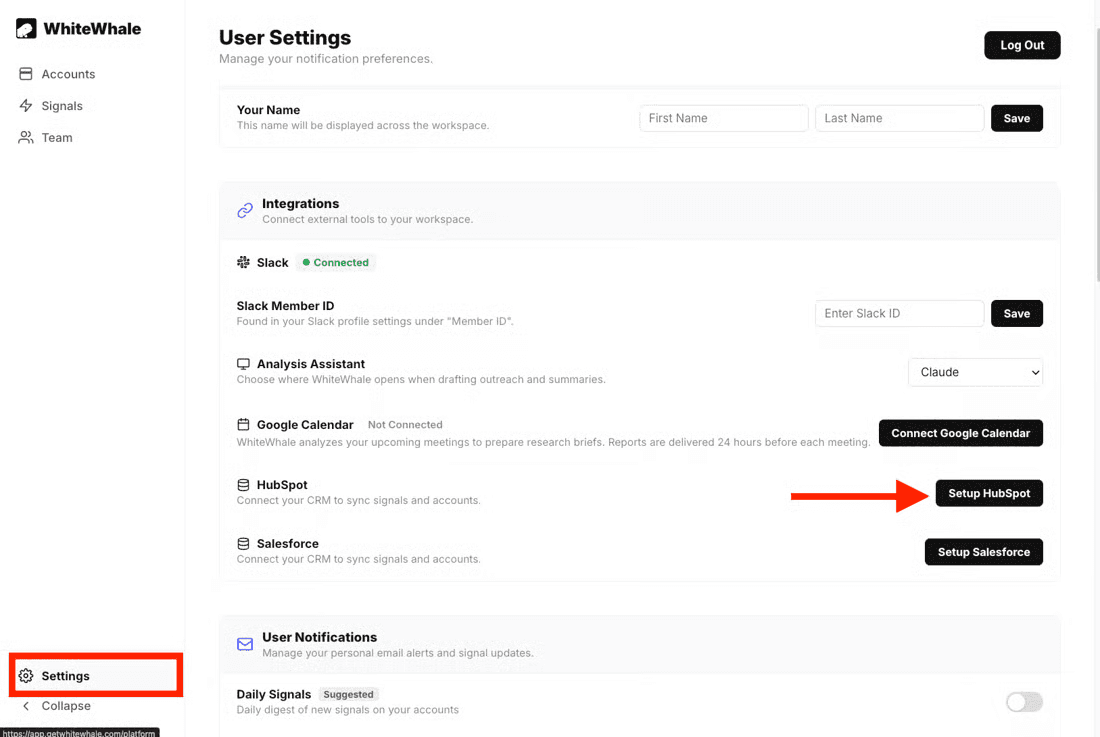
You will be redirected to HubSpot’s OAuth authorization screen. Select the HubSpot portal you want to connect, review the permissions, and click Grant Access.

WhiteWhale requests the minimum permissions needed to function: read and write access to company records, and read access to company schemas. If you enable deal mapping later, additional read-only scopes for deals and owners are added.
Once authorized, you will see a green “Connected” status next to HubSpot in your WhiteWhale settings.
Step 2: Choose your setup method
WhiteWhale offers two setup paths:
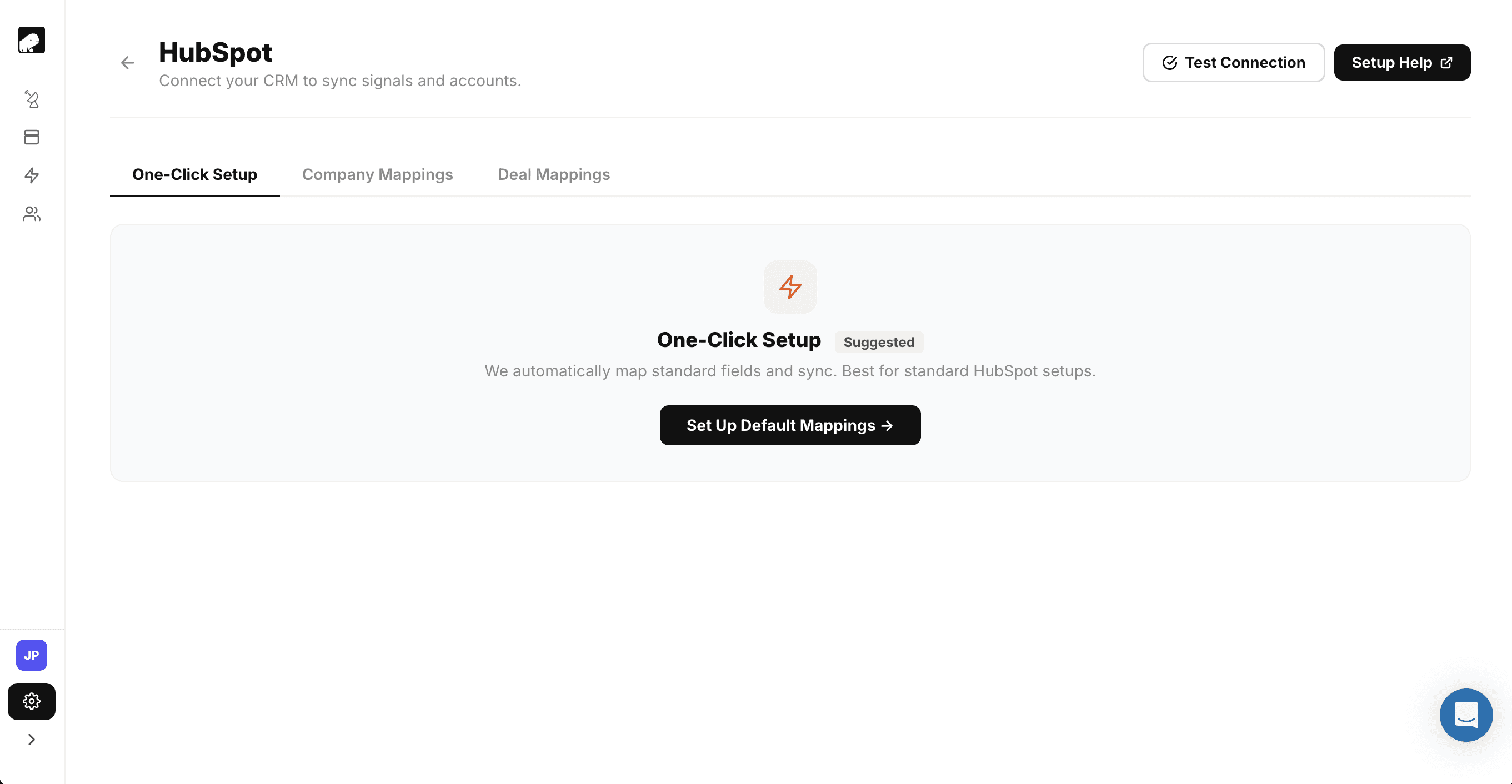
One-click setup (recommended for most teams): WhiteWhale maps all standard fields automatically. This takes a few minutes and works for the vast majority of HubSpot instances. Choose this unless you have a specific reason to customize.
Custom mapping: Manually map company and deal fields if you need non-standard field names, have naming conventions your CRM admin requires, or run a more complex HubSpot setup with multiple pipelines.
Step 3: Create the custom fields in HubSpot
Before WhiteWhale can sync data, you need to create the fields in HubSpot that WhiteWhale will write to. For one-click setup, WhiteWhale shows you the exact fields to create with their required types.
Go to your HubSpot portal, navigate to Settings > Properties > Company Properties, and create the following fields under the Company Information group:
Field name | Field type | What it stores |
|---|---|---|
WhiteWhale Score | Number | Account score from 0 to 100 based on signal strength |
WhiteWhale Description | Single-line text | Why Now summary of the most recent signals |
WhiteWhale Signals | Rich text | Detailed signal data for the account |
WhiteWhale Link | URL | Direct link to the account’s full report in WhiteWhale |
WhiteWhale Signal List | Multiple checkboxes | All active signals matching this account (displayed as tags) |
WhiteWhale Originated | Single checkbox | Whether WhiteWhale originated the account (for attribution) |
WhiteWhale Add Date | Date and time picker | Date the account was first added to WhiteWhale |
Once you have created the fields, return to WhiteWhale and click I’ve created these fields and I’m ready to map.
Step 4: Test the connection
Click Test Connection. WhiteWhale runs validation checks to confirm the field mapping is correct and data can flow both directions. If any errors appear, fix the flagged issues and test again until the connection is confirmed.
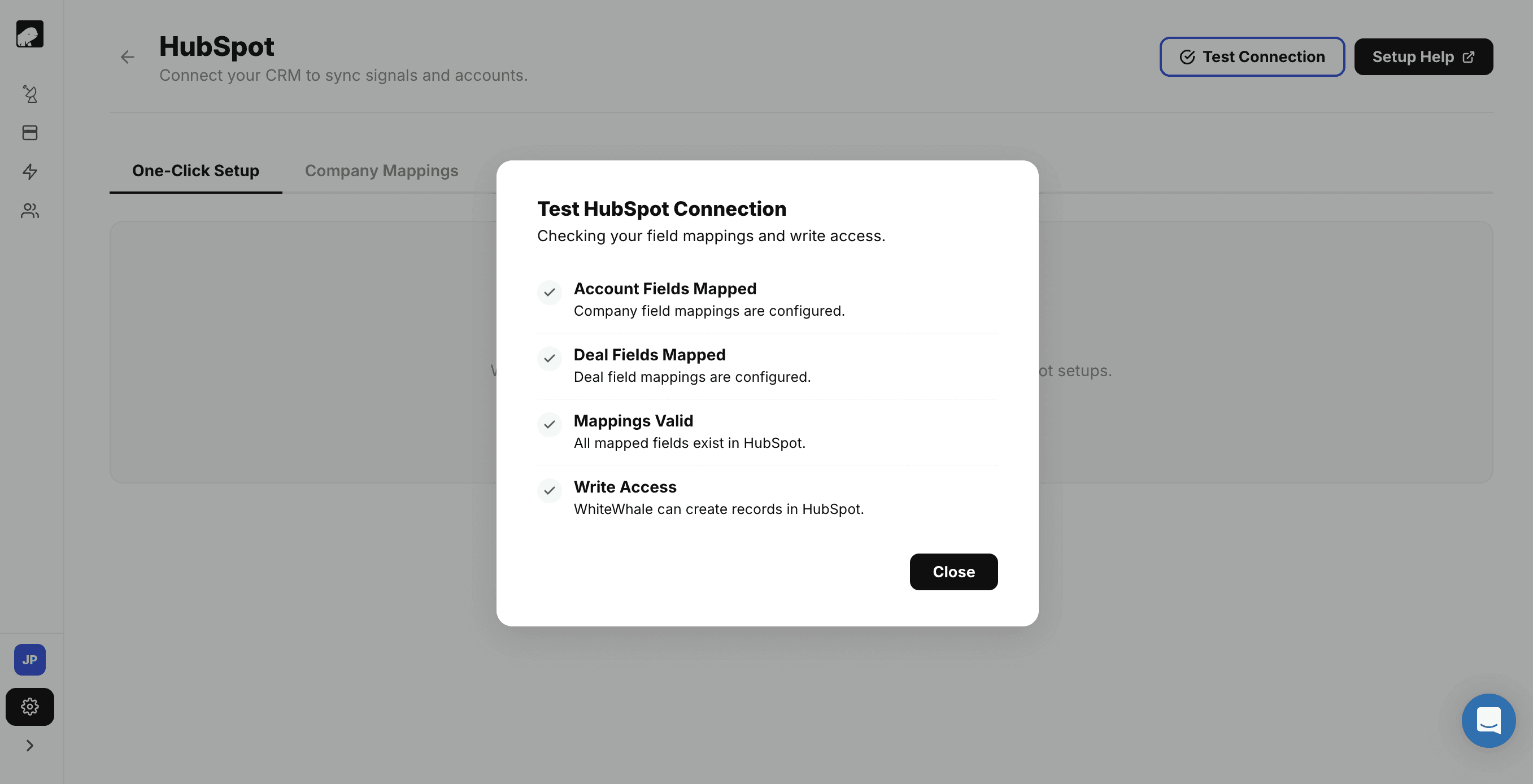
Once the test passes, WhiteWhale will begin its initial sync that evening. The first sync pulls your company records from HubSpot, matches them against your WhiteWhale account list, and pushes signal data back to the mapped fields.
What to expect during the first week: The initial sync processes your full company list and establishes baseline signal scores. Expect higher API activity during this calibration period. After the first week, syncs run on a daily schedule.
Step 5: Install the HubSpot App Card
The WhiteWhale app card puts signal data directly on the HubSpot company record so reps see it without opening another tool.
Install from the HubSpot Marketplace: Go to the WhiteWhale listing on the HubSpot Marketplace and click Install. The app has a 5-star rating.
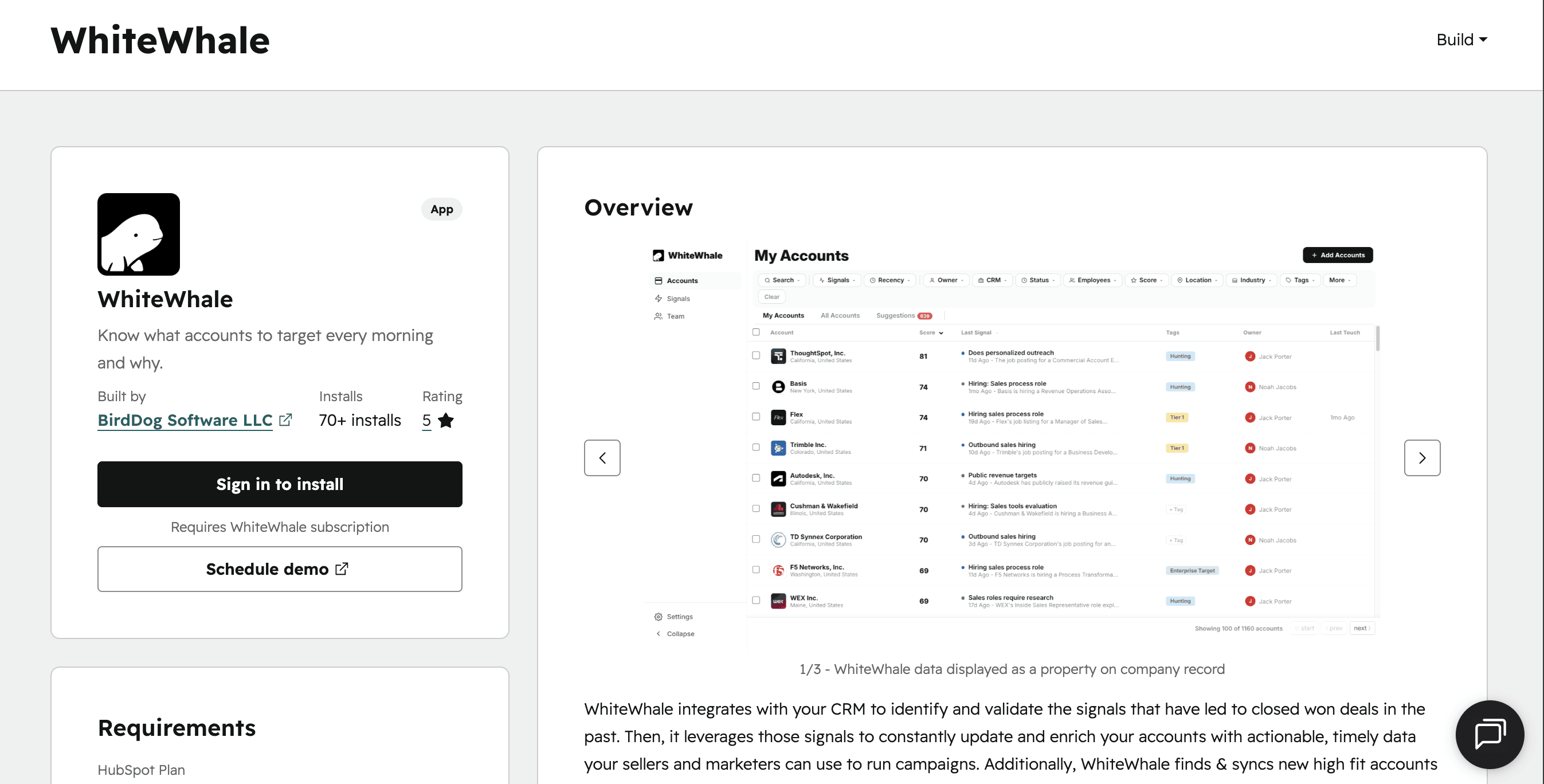
Authorize the connection: Follow the OAuth prompts to authorize WhiteWhale to display data on your HubSpot records.
Add the card to your company record layout: In HubSpot, go to the Card Library and search for WhiteWhale. Add it to the company record layout so it appears on every account page.
Once the card is added, every rep on your team sees WhiteWhale signal data, the score, active signals, and the Why Now summary, directly on the HubSpot company record without needing to open WhiteWhale separately.
Step 6: Set up deal mapping (optional but recommended)
Mapping your deal pipeline is optional but unlocks two capabilities that make WhiteWhale significantly more valuable over time:
Signal recommendations that adapt to deal stage. When WhiteWhale knows where each prospect is in your pipeline, it can surface different signals for accounts in early-stage discovery versus accounts in late-stage negotiation.
Revenue validation and backtesting. With deal data mapped, WhiteWhale can analyze which signals correlated most strongly with your closed-won deals over the past 6 to 12 months. This tells you which signals actually drive pipeline, so you can refine your signal set based on revenue data instead of guessing.
To enable deal mapping, go to Settings > HubSpot > Deal Mapping in WhiteWhale and map the following fields:
Field | What it maps to in HubSpot |
|---|---|
Deal ID |
|
Company ID |
|
Deal Name | Deal name |
Stage | Current deal stage |
Amount | Deal size |
Close Date | Expected close date |
Is Closed | Whether the deal is closed |
Is Won | Whether the deal is won |
Created Date | Date the deal was create |
Once mapped, WhiteWhale reads deal data (read-only, it never modifies your deals) and uses it to improve signal recommendations and enable revenue validation.
How the daily sync works
Once connected, WhiteWhale syncs with HubSpot on two schedules:
Daily sync (5 to 9 AM ET): WhiteWhale pulls your company and deal records from HubSpot and pushes updated scores, signals, and Why Now summaries back to the mapped fields. This means your reps start every morning with fresh signal data on their accounts.
Real-time updates: When a new account is added or activated in WhiteWhale, the CRM is updated immediately. Your rep does not have to wait for the next daily sync to see signal data on a newly added account.
WhiteWhale only reads from the fields you map and only writes to the WhiteWhale-specific fields you created. It will not modify any other HubSpot data.
How reps use signals in HubSpot
The integration changes three specific moments in a rep’s day:
Before a call: The rep opens the company record in HubSpot and reads the Why Now summary. It says: “CFO discussed cost reduction on Q3 earnings call. Company posted 3 roles for automation engineers last week. CapEx increased 18% year-over-year.” The rep now has specific, verifiable talking points for the conversation.
During pipeline review: The rep sorts their pipeline by WhiteWhale Score. Accounts scoring 40+ have multiple stacked signals and should be prioritized. Accounts scoring under 10 have not hit any recent triggers and can wait. This replaces gut-feel prioritization with signal-based prioritization.
After a deal closes: With deal mapping enabled, WhiteWhale logs which signals were active on the account when the deal was created and when it was won. Over time, this data reveals which signals actually predict revenue, so you can stop tracking signals that do not convert and double down on the ones that do.
Accounts with 2 or more stacked signals close at 2.1x the baseline win rate. The HubSpot integration makes this data visible to every rep on every account, every day.
Advanced: Using HubSpot workflows with WhiteWhale signals
Once WhiteWhale data is in HubSpot, you can trigger native HubSpot workflows based on signal activity:
Auto-assign high-signal accounts: Create a HubSpot workflow that triggers when WhiteWhale Score exceeds a threshold (e.g., score > 40). The workflow assigns the account to a rep, creates a task, and sends a Slack notification.
Enroll signal-hit accounts in sequences: When the WhiteWhale Signal List field updates to include a specific signal (e.g., “CEO discussed AI adoption”), trigger a HubSpot workflow that enrolls the primary contact in a targeted sequence.
Update lifecycle stage based on signals: When an account first hits a WhiteWhale signal, automatically move the company from “Subscriber” or “Lead” to “Marketing Qualified” to ensure it enters the right pipeline.
Alert managers when accounts stack signals: Create a workflow that triggers when WhiteWhale Score jumps above 60 (indicating multiple stacked signals) and sends a notification to the sales manager so they can coach the rep on the approach.
For teams using Clay alongside HubSpot, signals can also fire via webhook to Clay for automated contact enrichment before the HubSpot workflow triggers outreach. And for AI-native teams, the MCP integration lets Claude or ChatGPT access signal data directly to draft personalized outreach.
Troubleshooting common issues
Companies not syncing: WhiteWhale matches on company domain. If a company record in HubSpot does not have a domain or website URL in the domain or website field, WhiteWhale cannot process it. Check that your company records have domains populated.
Fields not appearing on records: Make sure the custom fields were created under the Company Information group in HubSpot, and that the field types match exactly (e.g., Number for score, Rich text for signals). If field types do not match, the sync will not write data.
App card not showing: After installing from the Marketplace, you need to manually add the card to your company record layout via the Card Library. It does not appear automatically. Search for “WhiteWhale” in the Card Library and drag it to the record layout.
Scores showing as 0: After initial setup, WhiteWhale needs one full sync cycle (5 to 9 AM ET the next business day) to calculate scores for your account list. If scores are still 0 after 48 hours, contact the WhiteWhale team.
Deal mapping permissions: Enabling deal mapping requires additional HubSpot scopes (deals.read, owners.read). If you are not the HubSpot super admin, you may need to request these permissions from your admin before enabling deal mapping.
FAQ
How long does it take to set up WhiteWhale in HubSpot?
Under 20 minutes. Connect HubSpot (2 minutes), create the custom fields (5 to 10 minutes depending on how many you add), install the app card from the Marketplace (2 minutes), and test the connection (2 minutes). Most teams have signal data visible on HubSpot company records within 24 hours of setup.
Does WhiteWhale modify my existing HubSpot data?
No. WhiteWhale only reads from the fields you map (company domain, deal data if enabled) and only writes to the WhiteWhale-specific fields you create. It will not modify any other company, contact, or deal data in your HubSpot portal.
Can I trigger HubSpot workflows from WhiteWhale signals?
Yes. Once WhiteWhale data is synced to HubSpot company properties, you can use any of those fields as workflow enrollment triggers. Common workflows: auto-assign high-score accounts, enroll signal-hit accounts in sequences, and alert managers when accounts stack multiple signals.
How much does WhiteWhale cost?
Plans start at $200/month, month-to-month, no annual contract. Unlimited users. The HubSpot integration is included on all plans. You can see what signals WhiteWhale finds for your accounts before committing. See pricing.
Can I use both Slack and HubSpot integrations?
Yes, and most teams do. Slack is the real-time alert layer: signals fire to Slack the moment they happen so reps can act immediately. HubSpot is the persistent context layer: signal data stays on the company record so reps see it every time they open an account, even weeks after the signal fired. Running both gives your team immediate notification plus ongoing context.
What is the WhiteWhale Score?
A score from 0 to 100 based on the strength and recency of signal activity on the account. Higher scores mean more signals, more recent signals, or higher-priority signal types. Scores above 80 are strong but rare. Even a score above 10 likely has valuable information. The score is useful for sorting and prioritizing accounts in HubSpot views and reports.
Does deal mapping change anything in my deal records?
No. Deal mapping is read-only. WhiteWhale reads deal stage, amount, close date, and outcome data to improve signal recommendations and enable revenue validation (backtesting which signals correlate with closed-won deals). It never writes to or modifies your deal records.
What is revenue validation?
Revenue validation is WhiteWhale’s ability to analyze which of your custom signals correlated most strongly with deals that actually closed over the past 6 to 12 months. It requires deal mapping to be enabled. The output tells you which signals actually predict pipeline, so you can refine your signal set based on revenue data instead of intuition. This is one of the most valuable features for teams that have been using WhiteWhale for 3+ months.
About the author
Jack Porter is Co-Founder of WhiteWhale, a buying signal platform for B2B sales teams. Since 2025, Jack has spoken with 1,875 sales, GTM, and marketing leaders about their technology stack, what signals actually drive pipeline, and where intent data falls short. Those conversations informed every recommendation on this page. He can be reached on LinkedIn.
You can sync buying signals, account scores, and Why Now summaries directly to your HubSpot company records using WhiteWhale’s native HubSpot integration. Once connected, WhiteWhale pushes updated signal data to HubSpot daily and in real-time when new accounts are added. Your reps see signals inside the CRM they already work in, with no spreadsheets, no manual exports, and no second tab.
WhiteWhale also has a 5-star app card on the HubSpot Marketplace that shows signal data directly on the company record. Reps open an account in HubSpot and see the score, the active signals, and the Why Now summary without leaving the CRM.
This guide walks through the full setup: connecting WhiteWhale to HubSpot, mapping your fields, installing the app card, and configuring deal mapping for revenue validation.
Why HubSpot for buying signals
Most buying signal platforms deliver signals to dashboards that reps have to remember to check. The problem is the same as with Slack alerts: signals that do not appear where your reps already work get ignored.
HubSpot is where your reps live. They open company records before every call. They review deal pipelines every morning. They update stages and log activities throughout the day. If buying signals appear inside HubSpot, on the company record your rep is already looking at, the signal becomes part of the workflow instead of an interruption to it.
WhiteWhale’s HubSpot integration puts three things on every company record:
What syncs | What it tells the rep |
|---|---|
WhiteWhale Score (0 to 100) | How strong the signal activity is for this account. Scores above 80 are strong but rare. Even a score above 10 likely has valuable information. |
Signal List | Which of your custom signals this account has hit (e.g., “CEO discussed AI adoption on earnings call,” “Hiring for ERP migration roles”) |
Why Now Summary | A narrative summary of the most recent signals with sources, written so the rep can read it and immediately understand why this account matters right now |
Most WhiteWhale customers run both integrations: Slack for real-time alerts when signals fire, and HubSpot for persistent context that is always visible on the company record when a rep is preparing for a call.
What you need before starting
A WhiteWhale account (plans start at $200/mo, month-to-month, no annual contract)
At least 5 custom signals written and active
Admin access to your HubSpot portal
Companies in HubSpot with a domain or website URL on record (WhiteWhale matches on domain)
Step 1: Connect WhiteWhale to HubSpot
Open your WhiteWhale dashboard and navigate to Settings in the left sidebar. Scroll to the HubSpot section and click Set Up.
You will be redirected to HubSpot’s OAuth authorization screen. Select the HubSpot portal you want to connect, review the permissions, and click Grant Access.
WhiteWhale requests the minimum permissions needed to function: read and write access to company records, and read access to company schemas. If you enable deal mapping later, additional read-only scopes for deals and owners are added.
Once authorized, you will see a green “Connected” status next to HubSpot in your WhiteWhale settings.
Step 2: Choose your setup method
WhiteWhale offers two setup paths:
One-click setup (recommended for most teams): WhiteWhale maps all standard fields automatically. This takes a few minutes and works for the vast majority of HubSpot instances. Choose this unless you have a specific reason to customize.
Custom mapping: Manually map company and deal fields if you need non-standard field names, have naming conventions your CRM admin requires, or run a more complex HubSpot setup with multiple pipelines.
Step 3: Create the custom fields in HubSpot
Before WhiteWhale can sync data, you need to create the fields in HubSpot that WhiteWhale will write to. For one-click setup, WhiteWhale shows you the exact fields to create with their required types.
Go to your HubSpot portal, navigate to Settings > Properties > Company Properties, and create the following fields under the Company Information group:
Field name | Field type | What it stores |
|---|---|---|
WhiteWhale Score | Number | Account score from 0 to 100 based on signal strength |
WhiteWhale Description | Single-line text | Why Now summary of the most recent signals |
WhiteWhale Signals | Rich text | Detailed signal data for the account |
WhiteWhale Link | URL | Direct link to the account’s full report in WhiteWhale |
WhiteWhale Signal List | Multiple checkboxes | All active signals matching this account (displayed as tags) |
WhiteWhale Originated | Single checkbox | Whether WhiteWhale originated the account (for attribution) |
WhiteWhale Add Date | Date and time picker | Date the account was first added to WhiteWhale |
Once you have created the fields, return to WhiteWhale and click I’ve created these fields and I’m ready to map.
Step 4: Test the connection
Click Test Connection. WhiteWhale runs validation checks to confirm the field mapping is correct and data can flow both directions. If any errors appear, fix the flagged issues and test again until the connection is confirmed.
Once the test passes, WhiteWhale will begin its initial sync that evening. The first sync pulls your company records from HubSpot, matches them against your WhiteWhale account list, and pushes signal data back to the mapped fields.
What to expect during the first week: The initial sync processes your full company list and establishes baseline signal scores. Expect higher API activity during this calibration period. After the first week, syncs run on a daily schedule.
Step 5: Install the HubSpot App Card
The WhiteWhale app card puts signal data directly on the HubSpot company record so reps see it without opening another tool.
Install from the HubSpot Marketplace: Go to the WhiteWhale listing on the HubSpot Marketplace and click Install. The app has a 5-star rating.
Authorize the connection: Follow the OAuth prompts to authorize WhiteWhale to display data on your HubSpot records.
Add the card to your company record layout: In HubSpot, go to the Card Library and search for WhiteWhale. Add it to the company record layout so it appears on every account page.
Once the card is added, every rep on your team sees WhiteWhale signal data, the score, active signals, and the Why Now summary, directly on the HubSpot company record without needing to open WhiteWhale separately.
Step 6: Set up deal mapping (optional but recommended)
Mapping your deal pipeline is optional but unlocks two capabilities that make WhiteWhale significantly more valuable over time:
Signal recommendations that adapt to deal stage. When WhiteWhale knows where each prospect is in your pipeline, it can surface different signals for accounts in early-stage discovery versus accounts in late-stage negotiation.
Revenue validation and backtesting. With deal data mapped, WhiteWhale can analyze which signals correlated most strongly with your closed-won deals over the past 6 to 12 months. This tells you which signals actually drive pipeline, so you can refine your signal set based on revenue data instead of guessing.
To enable deal mapping, go to Settings > HubSpot > Deal Mapping in WhiteWhale and map the following fields:
Field | What it maps to in HubSpot |
|---|---|
Deal ID |
|
Company ID |
|
Deal Name | Deal name |
Stage | Current deal stage |
Amount | Deal size |
Close Date | Expected close date |
Is Closed | Whether the deal is closed |
Is Won | Whether the deal is won |
Created Date | Date the deal was create |
Once mapped, WhiteWhale reads deal data (read-only, it never modifies your deals) and uses it to improve signal recommendations and enable revenue validation.
How the daily sync works
Once connected, WhiteWhale syncs with HubSpot on two schedules:
Daily sync (5 to 9 AM ET): WhiteWhale pulls your company and deal records from HubSpot and pushes updated scores, signals, and Why Now summaries back to the mapped fields. This means your reps start every morning with fresh signal data on their accounts.
Real-time updates: When a new account is added or activated in WhiteWhale, the CRM is updated immediately. Your rep does not have to wait for the next daily sync to see signal data on a newly added account.
WhiteWhale only reads from the fields you map and only writes to the WhiteWhale-specific fields you created. It will not modify any other HubSpot data.
How reps use signals in HubSpot
The integration changes three specific moments in a rep’s day:
Before a call: The rep opens the company record in HubSpot and reads the Why Now summary. It says: “CFO discussed cost reduction on Q3 earnings call. Company posted 3 roles for automation engineers last week. CapEx increased 18% year-over-year.” The rep now has specific, verifiable talking points for the conversation.
During pipeline review: The rep sorts their pipeline by WhiteWhale Score. Accounts scoring 40+ have multiple stacked signals and should be prioritized. Accounts scoring under 10 have not hit any recent triggers and can wait. This replaces gut-feel prioritization with signal-based prioritization.
After a deal closes: With deal mapping enabled, WhiteWhale logs which signals were active on the account when the deal was created and when it was won. Over time, this data reveals which signals actually predict revenue, so you can stop tracking signals that do not convert and double down on the ones that do.
Accounts with 2 or more stacked signals close at 2.1x the baseline win rate. The HubSpot integration makes this data visible to every rep on every account, every day.
Advanced: Using HubSpot workflows with WhiteWhale signals
Once WhiteWhale data is in HubSpot, you can trigger native HubSpot workflows based on signal activity:
Auto-assign high-signal accounts: Create a HubSpot workflow that triggers when WhiteWhale Score exceeds a threshold (e.g., score > 40). The workflow assigns the account to a rep, creates a task, and sends a Slack notification.
Enroll signal-hit accounts in sequences: When the WhiteWhale Signal List field updates to include a specific signal (e.g., “CEO discussed AI adoption”), trigger a HubSpot workflow that enrolls the primary contact in a targeted sequence.
Update lifecycle stage based on signals: When an account first hits a WhiteWhale signal, automatically move the company from “Subscriber” or “Lead” to “Marketing Qualified” to ensure it enters the right pipeline.
Alert managers when accounts stack signals: Create a workflow that triggers when WhiteWhale Score jumps above 60 (indicating multiple stacked signals) and sends a notification to the sales manager so they can coach the rep on the approach.
For teams using Clay alongside HubSpot, signals can also fire via webhook to Clay for automated contact enrichment before the HubSpot workflow triggers outreach. And for AI-native teams, the MCP integration lets Claude or ChatGPT access signal data directly to draft personalized outreach.
Troubleshooting common issues
Companies not syncing: WhiteWhale matches on company domain. If a company record in HubSpot does not have a domain or website URL in the domain or website field, WhiteWhale cannot process it. Check that your company records have domains populated.
Fields not appearing on records: Make sure the custom fields were created under the Company Information group in HubSpot, and that the field types match exactly (e.g., Number for score, Rich text for signals). If field types do not match, the sync will not write data.
App card not showing: After installing from the Marketplace, you need to manually add the card to your company record layout via the Card Library. It does not appear automatically. Search for “WhiteWhale” in the Card Library and drag it to the record layout.
Scores showing as 0: After initial setup, WhiteWhale needs one full sync cycle (5 to 9 AM ET the next business day) to calculate scores for your account list. If scores are still 0 after 48 hours, contact the WhiteWhale team.
Deal mapping permissions: Enabling deal mapping requires additional HubSpot scopes (deals.read, owners.read). If you are not the HubSpot super admin, you may need to request these permissions from your admin before enabling deal mapping.
FAQ
How long does it take to set up WhiteWhale in HubSpot?
Under 20 minutes. Connect HubSpot (2 minutes), create the custom fields (5 to 10 minutes depending on how many you add), install the app card from the Marketplace (2 minutes), and test the connection (2 minutes). Most teams have signal data visible on HubSpot company records within 24 hours of setup.
Does WhiteWhale modify my existing HubSpot data?
No. WhiteWhale only reads from the fields you map (company domain, deal data if enabled) and only writes to the WhiteWhale-specific fields you create. It will not modify any other company, contact, or deal data in your HubSpot portal.
Can I trigger HubSpot workflows from WhiteWhale signals?
Yes. Once WhiteWhale data is synced to HubSpot company properties, you can use any of those fields as workflow enrollment triggers. Common workflows: auto-assign high-score accounts, enroll signal-hit accounts in sequences, and alert managers when accounts stack multiple signals.
How much does WhiteWhale cost?
Plans start at $200/month, month-to-month, no annual contract. Unlimited users. The HubSpot integration is included on all plans. You can see what signals WhiteWhale finds for your accounts before committing. See pricing.
Can I use both Slack and HubSpot integrations?
Yes, and most teams do. Slack is the real-time alert layer: signals fire to Slack the moment they happen so reps can act immediately. HubSpot is the persistent context layer: signal data stays on the company record so reps see it every time they open an account, even weeks after the signal fired. Running both gives your team immediate notification plus ongoing context.
What is the WhiteWhale Score?
A score from 0 to 100 based on the strength and recency of signal activity on the account. Higher scores mean more signals, more recent signals, or higher-priority signal types. Scores above 80 are strong but rare. Even a score above 10 likely has valuable information. The score is useful for sorting and prioritizing accounts in HubSpot views and reports.
Does deal mapping change anything in my deal records?
No. Deal mapping is read-only. WhiteWhale reads deal stage, amount, close date, and outcome data to improve signal recommendations and enable revenue validation (backtesting which signals correlate with closed-won deals). It never writes to or modifies your deal records.
What is revenue validation?
Revenue validation is WhiteWhale’s ability to analyze which of your custom signals correlated most strongly with deals that actually closed over the past 6 to 12 months. It requires deal mapping to be enabled. The output tells you which signals actually predict pipeline, so you can refine your signal set based on revenue data instead of intuition. This is one of the most valuable features for teams that have been using WhiteWhale for 3+ months.
About the author
Jack Porter is Co-Founder of WhiteWhale, a buying signal platform for B2B sales teams. Since 2025, Jack has spoken with 1,875 sales, GTM, and marketing leaders about their technology stack, what signals actually drive pipeline, and where intent data falls short. Those conversations informed every recommendation on this page. He can be reached on LinkedIn.

Almost everyone says
"Wait…you can track THAT?"
See your signals for free. No credit card required.
Almost everyone says
"Wait…you can track THAT?"
See your signals for free. No credit card required.